How to Set the Project Start Date in Microsoft Project
How to Set the Project Start Date in Microsoft Project
Using the example below, in Figures 1 & 2, that the project start date is the 9th of August 2021 which is a Monday.
In order to change this start date, go to the Project tab and click on Project Information in the Properties tab. See Figures 3 and 4 below.

Figure 1: Project Start Date Displayed in the Timeline View of Microsoft Project

Figure 2: Project Start Date Displayed in the Timeline View of Microsoft Project (Zoomed In)

Figure 3: Project Tab and Properties Ribbon

Figure 4: Project Information Settings to Change the Project Start Date
In the Projection Information settings, you can change the start date.
Under Start date: in this example, I have changed the date to start the following week, see Figure 5. Usually, you would set this start date a few months in advanced when you start developing a project schedule.
IMPORTANT NOTE: If you have marked tasks as 100% complete with start dates that are before the new project start date, then the project’s start date will not change. In this example, I had to roll back a few tasks’ % complete to reflect the project start date. This will only happen if you are changing the start date for a project that has already started. A better option is to use the Move Project function which will be described further below.
Also note that the project is scheduled from the project start date. If you want to develop your schedule based on the project’s deadline date, you can change this, see Figure 7. Simply go to Project > Project Information > Schedule from: and select Project Finish Date in the dropdown list.

Figure 5: Changing the Project Start Date in Microsoft Project 1 Week Later

Figure 6: Updated Project Start Date in the Timeline View

Figure 7: Changing the Project Starting Date to Schedule from the Finish Date
How to use the Project Move function in Microsoft Project
If you have already developed your project plan, you can use simply change the project start date using the Move Project function. You can also select whether to move tasks that have actual work in progress.
Before moving the project start date, you can reschedule selected tasks. You will need to ensure the tasks are selected prior to clicking on Update Project:
1) Project > Status > Update Project
2) Select Reschedule uncompleted work to start after: and then click on Selected tasks
3) Select the required date and click okay.
For more information using the Update Project function, go to the Microsoft Support website.

Figure 8: Rescheduling Selected Tasks in Microsoft Project
Once you have rescheduled various tasks, you can move the project start date following the simple steps below.
Project > Project Information > Move Project
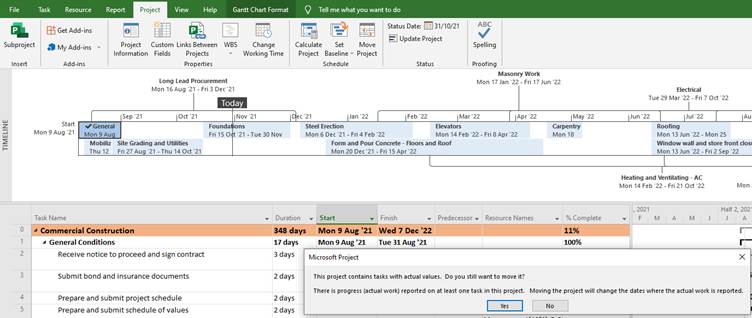
Figure 9: Moving the Project Start Date in Microsoft Project

Figure 10: Selecting the new Project Start Date using the Move Project function
Figure 9 and 10 only show the dialog boxes that pop-up when selecting the function for this example. In order to show the new start date, I would need to roll back the completed tasks in this example.
For more information on changing the start date in Microsoft Project, go to the Support website.