How to Use MS Project Fixed Duration and Fixed Work
How to Use MS Project Fixed Duration and Fixed Work
Types of Tasks
Microsoft project has three types of tasks: fixed units, fixed duration and fixed work. These task types are only applicable to automatically scheduled tasks. It is important to understand these three task types as they have an influence on how MS Project will schedule your project.
This article is complementary to a really detailed article available in Microsoft Help or the Support website: How MS project schedules tasks.
The fixed duration tasks will be anything where the duration of the tasks remains the same. The duration will not change regardless of how many resources are involved. A classic example is a team meeting that is allocated for 2 hours each week. Regardless of the number of people attending, the duration remains the same.
Fixed work tasks will depend on the hours required to get the task done. An example is the design of a product. If the task takes 80 hours and one designer is available for 40 hours per week, then the task will take 2 weeks to complete, assuming 100% availability. If the designer is only available for 50% of the time, the task will take 160 hours or 4 weeks.
How do Task Types Affect the Schedule?
The default task type is fixed unit.
The default duration unit is days and the default work unit is hours. This can be changed in the project settings.
MS Project schedules the project based on the following formula: Duration = Work/Unit or if you rearrange the equation Work = Duration x Units. Keeping this mind will help you remember how the task types affect the other parameters when resources are added.
Fixed unit tasks
If a task is set to fixed units, the following changes:
- Revise units – Duration is recalculated
- Revise duration – Work is recalculated
- Revise work – duration is recalculated
Fixed duration tasks
If a task is set to fixed duration, the following changes:
- Revise units – Work is recalculated
- Revise duration – Work is recalculated
- Revise work – Units are recalculated
Fixed work tasks
If a task is set to fixed work, the following changes:
- Revise units – Duration is recalculated
- Revise duration – Units are recalculated
- Revise work – Duration is recalculated
Effort-Driven Tasks
To keep the duration the same when additional resources are added, be sure to uncheck the ‘effort driven’ box when changing the task type.
How to Create a Fixed Duration Task
- Double click on the task name in the Gantt Chart view
- Select the Advanced tab
- Use the drop-down list for Task type:
- Select Fixed Duration
- Click OK
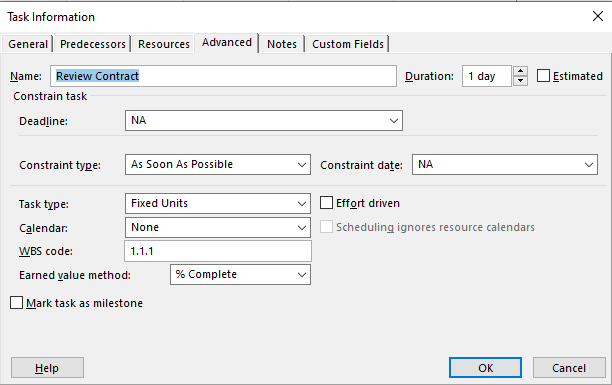
Figure 1: Task Information Advanced Tab to Change the Task Type

Figure 2: Selecting Fixed Duration in the Task Information Settings
How to Create a Fixed Work Task
- Double click on the task name in the Gantt Chart view
- Select the Advanced tab
- Use the drop-down list for Task type:
- Select Fixed Work
- Click OK

Figure 3: Selecting Fixed Work for the Task Type
Summary Task Types
Summary tasks are always fixed duration and cannot be changed.

Figure 4: Summary Tasks are Always a Fixed Duration Type Task
An Example of How Task Types Affect the Schedule
As a project manager, you want your schedule to reflect the true
Starting with the simple project below, no resources have been assigned. All the tasks are set to fixed duration as I have set arbitrary dates.

Figure 5: Example Project for Task Types
Fixed Duration Example
I’ve now assigned John to all of the tasks. Note – Nothing has changed in terms of the task duration. However, when you go into the resource usage sheet, John is clearly overloaded. I then assign a second person to the tasks called Luke. You will notice that the workload has been shared amongst John and Luke, however, the overall project duration and task dates have remained the same.
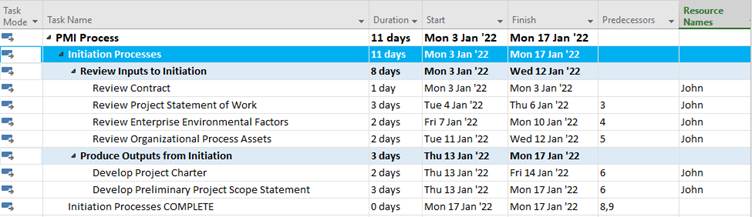
Figure 6: Assigning a Resource to All the Tasks

Figure 7: Resource Usage after Assigning John to the Tasks

Figure 8: Resource Usage after Assigning a Second Person to the Project Tasks

Figure 9: Project Duration with the Second Resource Assigned
Fixed Work Example
In this example, I simply change one task to a fixed work type task. I then assign Luke to that same task and in this case the duration gets recalculated and the duration is shortened because the initial work required to complete the tasks remained the same, but the additional resource meant the work can be done quicker. This is also shown in the resource usage form where John and Luke will each contribute 12 hours to make up the original 24 hours (3 days at 8 hours per day) to complete the task. The duration is shortened because they will now spend one full day on the task on day 1 and half a day on day 2.
Note – With Fixed Work to default task is effort-driven and this cannot be changed.
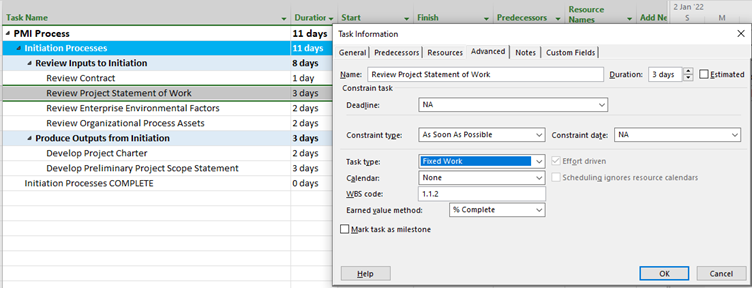
Figure 10: Changing a Task to Fixed Work
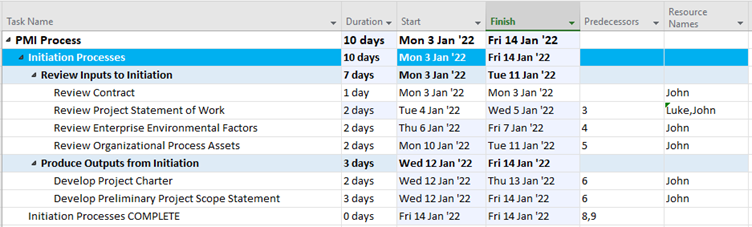
Figure 11: Schedule Change after Adding an Additional Resource to the Task
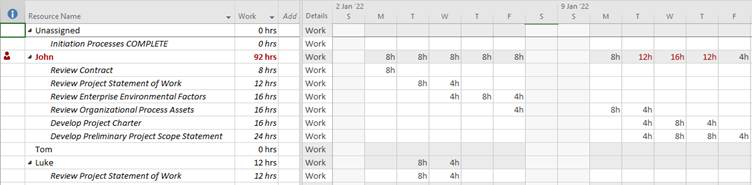
Figure 12: Resource Usage based on the Task being a Fixed Task Type
Example Tasks Types
Fixed Duration
- Milestone reviews
- Client meetings
- Team meetings
Fixed Work
- 3D modelling
- Drawings
- Developing a project plan
- Coding