How to Show the Critical Path in Microsoft Project
How to Show the Critical Path in Microsoft Project
Monitoring the critical path in a project is one of the most important tasks for a project manager. The critical path is all the tasks that are dependant which directly affect the completion date of the project and therefore if there is a delay with any task, the entire project will be delayed.
While the critical path is generally known at the outset of the project plan, significant delays or increased durations to other tasks can lead a new critical path. Check the end of this article to see how to manage this in Microsoft Project.
NB – Make sure your tasks are linked correctly with a predecessor and successor otherwise you will not get an accurate reflection of your critical path.

Figure 1: Construction Project Example with No Critical Path Highlighted
1. Go the Gantt Chart Format tab.
2. In the ribbon, under Bar Styles, select the Critical Tasks checkbox. A tick must appear in the checkbox for the format to be applied.
The Gantt chart bars will appear red for all critical path tasks. See Figure 3 and Figure 4 which shows the critical path formatting applied.
Keep in mind as tasks are completed within the critical path, the bars will no longer be red.
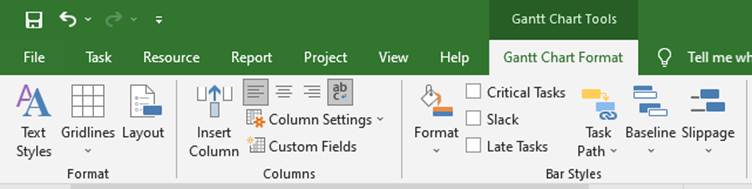
Figure 2: Selecting to View the Critical Path

Figure 3: Critical Tasks Checkbox Activated

Figure 4: The Critical Path Shown in the Gantt Chart
Another method you can use to draw attention to critical tasks is the highlight and filter options. The highlight option will format all the tasks in the task view yellow.
When the filter is applied for all critical tasks, only critical tasks are displayed in the task view and Gantt chart.
1. Go to the View tab.
2. Select the Highlight: dropdown list as showing in Figure 6,
3. Select Critical in the dropdown list.
4. To remove the highlight, simply select the Highlight: dropdown list and select [No Highlight].

Figure 5: Accessing Additional Critical Path Views

Figure 6: Selecting the Highlight Critical Path View

Figure 7: Critical Path Tasks are Highlighted
If you only want to see the critical tasks:
1. Go to the View tab
2. Select the Filter: dropdown list and
3. Select Critical in the dropdown listas shown in Figure 8.
Figure 9 shows all the critical tasks. This is the clearest view for critical tasks – in my opinion.
4. To remove the Filter and show all the tasks again, simply select the Filter: dropdown list and select [No Filter].

Figure 8: Selecting the Critical Path Task Filter View

Figure 9: Critical Path Tasks are only Displayed
How to Manage Potential Tasks that could Form a New Critical Path
As mentioned above, if other important tasks are not carefully monitored, they could end up forming a new critical path. As a project manager, this is the last thing that you want.
To manage this in Microsoft Project, you can adjust what Microsoft Project uses for calculating the critical path – don’t panic, it is straight forward and can be easily changed back if you do not like it.
All you are going to do is adjust the amount of slack between tasks that Microsoft Project allows between tasks. To do this follow the simple steps below:
Click on File
Select Advanced
Scroll down to Calculation options for this project
Then next to Tasks are critical if slack is less than or equal to
Note – The default is 0 which is expected for the critical path. Adjust this to the number of days that you would be comfortable with, should a task start slipping.

Figure 10: Adjusting the Critical Path Slack Allowance
Furthermore, you can display the multiple critical paths by selecting the Calculate multiple critical paths checkbox. This will show the critical path for independent networks of tasks.